Porsche MIB MHI2_US_POG24_K5136_MU1416 Frimware
Porsche MIB MHI2_US_POG24_K5136_MU1416 Frimware
Porsche MIB MHI2_US_POG24_K5136_MU1416 Frimware
This category gathers Other Vehicles automotive resources including diagnostic tools, ECU data, software packages, wiring diagrams, service manuals, programming tutorials, repair cases and retrofit references.
Porsche MIB MHI2_US_POG24_K5136_MU1416 Frimware
Porsche MIB MHI2_US_POG24_K5136_MU1416 Frimware
Porsche MIB MHI2_US_POG24_K5136_MU1416 Frimware
Porsche MIB MHI2_CN_POG11_K0816_MU0815 Frimware
Porsche MIB MHI2_CN_POG11_K0816_MU0815 Frimware
Porsche MIB MHI2_CN_POG11_K0816_MU0815 Frimware
Jaguar Land Rover JLR SDD 163.00.002 Full+Patch
Jaguar Land Rover JLR SDD 163.00.002 Full+Patch
Jaguar Land Rover JLR SDD 163.00.002 Full+Patch
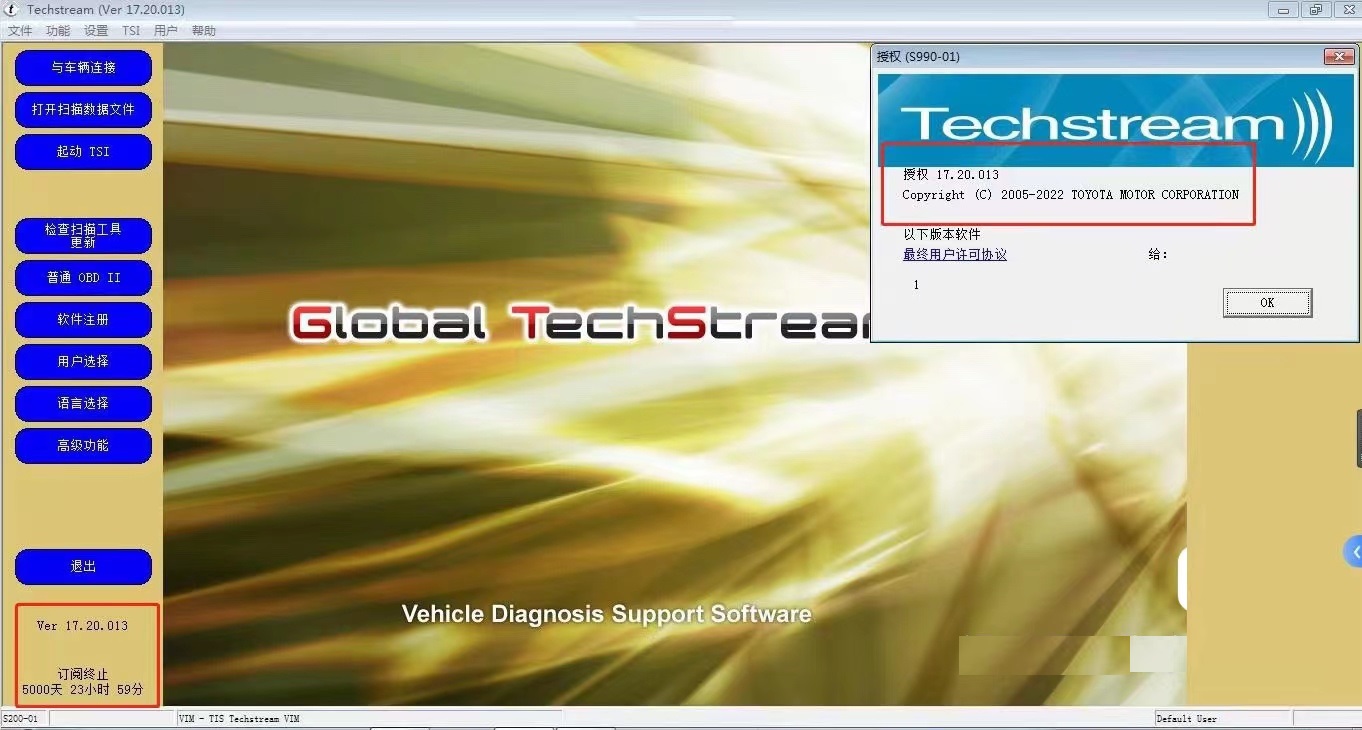
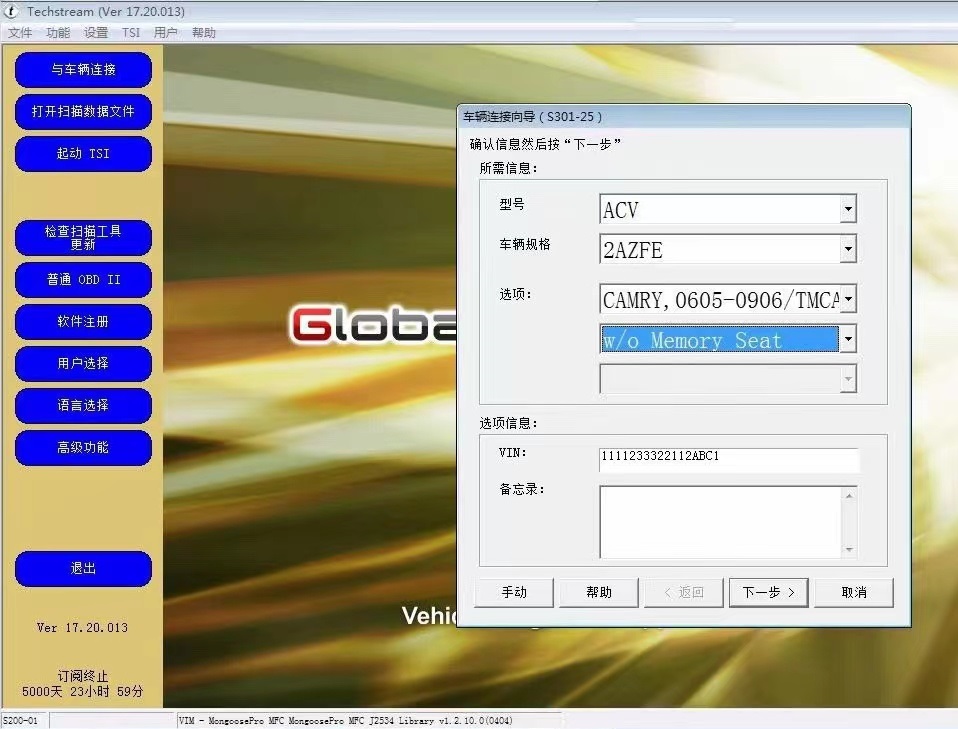
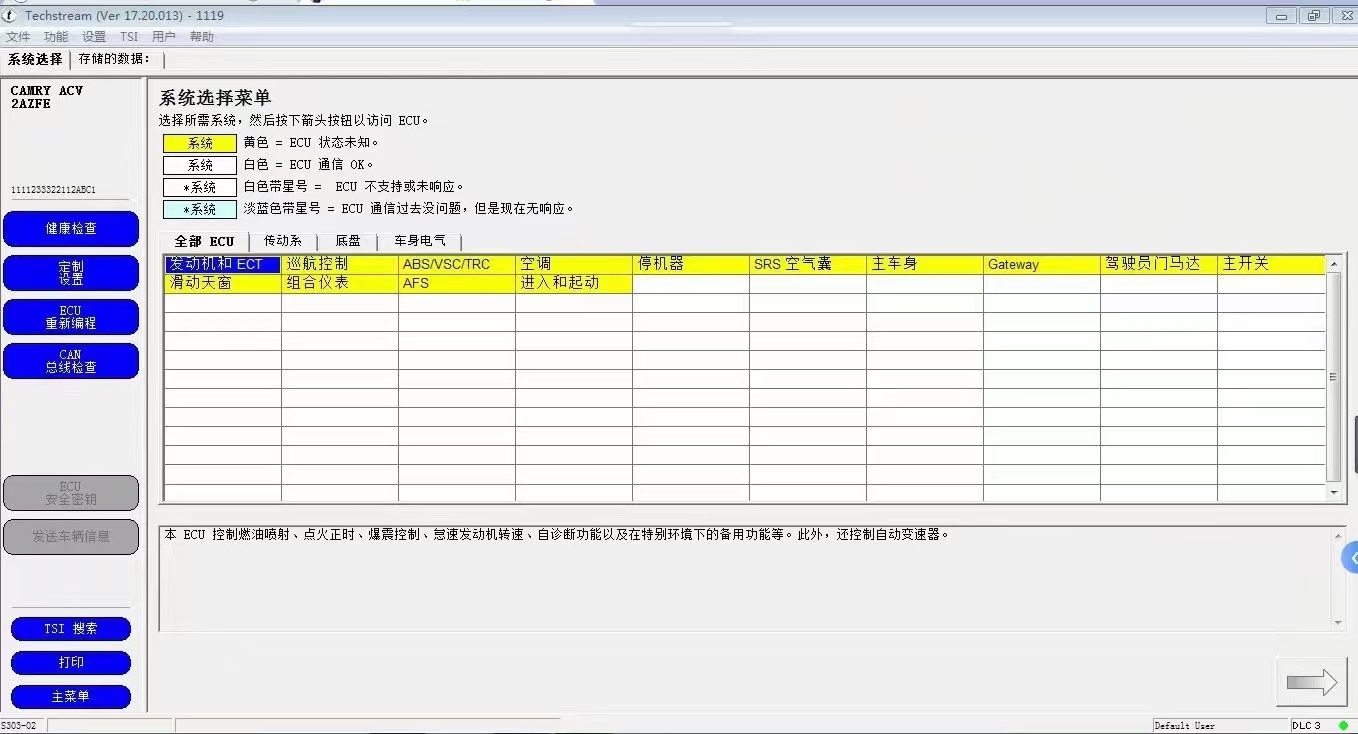
Latest version Toyota Techstream V17.20.013- 08.2022 + loader was tested working fine.
Version: Techstream V17.20.013
Release Date: 08/2022
Region: All regions
Type: Diagnostic tool Software
OS: WinXP, Vista, Windows7, WIN8, WIN10, Win11 32bit 64bit
Vehicle coverage: 1996-2022 Toyota Lexus
Compatible devices: VXDIAG VCX NANO Toyota (don’t need MVCI driver), Mongoose pro, Openport 2.0, SM2 Pro, Mini VCI J2534 Item #SV46-D, SV46-D1
Include:
Techstream v17.20.013 and Loader (08.2022).exe
Patch 32bit 64bit
Drivers.rar (MINI VCI driver 32bit 64bit, Mongoose pro MFC driver 32 bit 64bit, VXDIAG driver)
Language:
Japan: Japanese, English
North America: English, French, Spanish
Europe: English, German, French, Spanish, Italian, Chinese, Turkish, Russian
Other regions: English, German, French, Spanish, Italian, Chinese, Turkish, Russian
How to install:
1. Install the Program Toyota Techstream 17.20.013
2. Copy TS Loader into the installation directory — Toyota Diagnostics\Techstream\bin\
3. Create a link from the TS_Loader on the desktop you like
4. Start TS_Loader
5. Have Fun
Porsche-PCM 3.1 Firmware DVD 4.45-4.76
Porsche-PCM 3.1 Firmware DVD 4.45-4.76
Porsche-PCM 3.1 Firmware DVD 4.45-4.76
This is the method I use to install a VAS6154 Clone driver to a PIWIS 3.
this only works with 1.6.6.0 firmware and 31-12-2030 licence expiry.
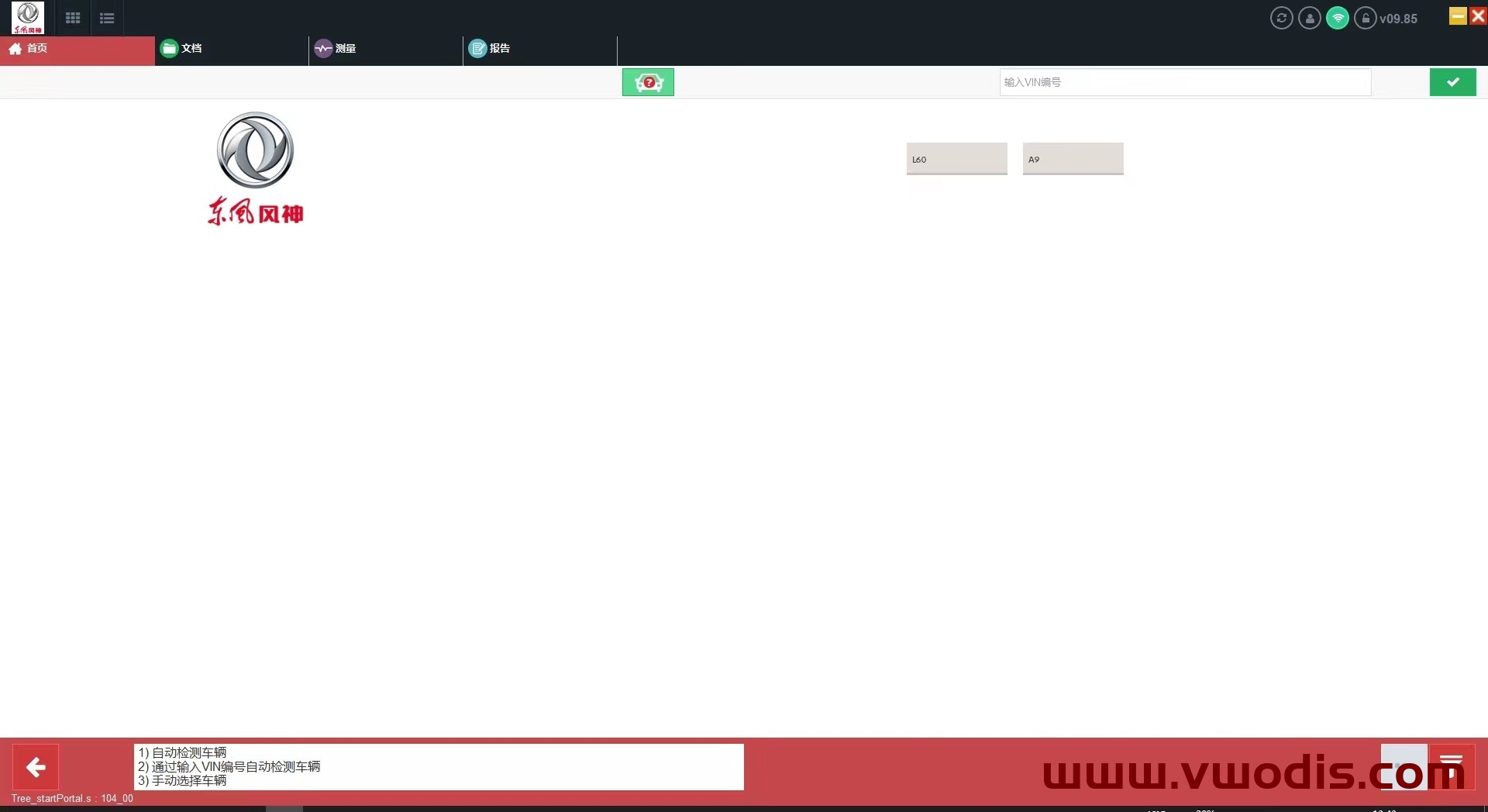
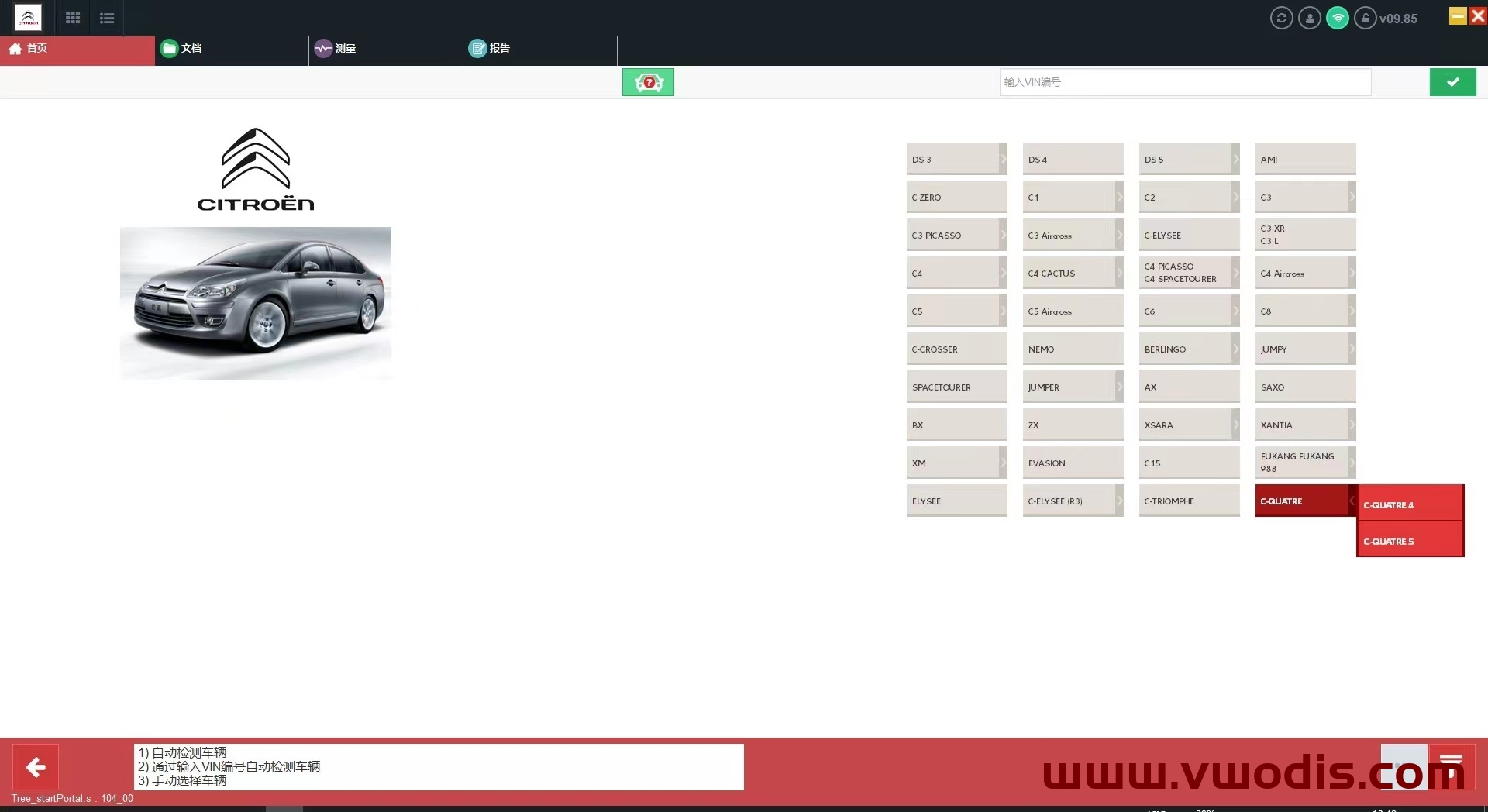
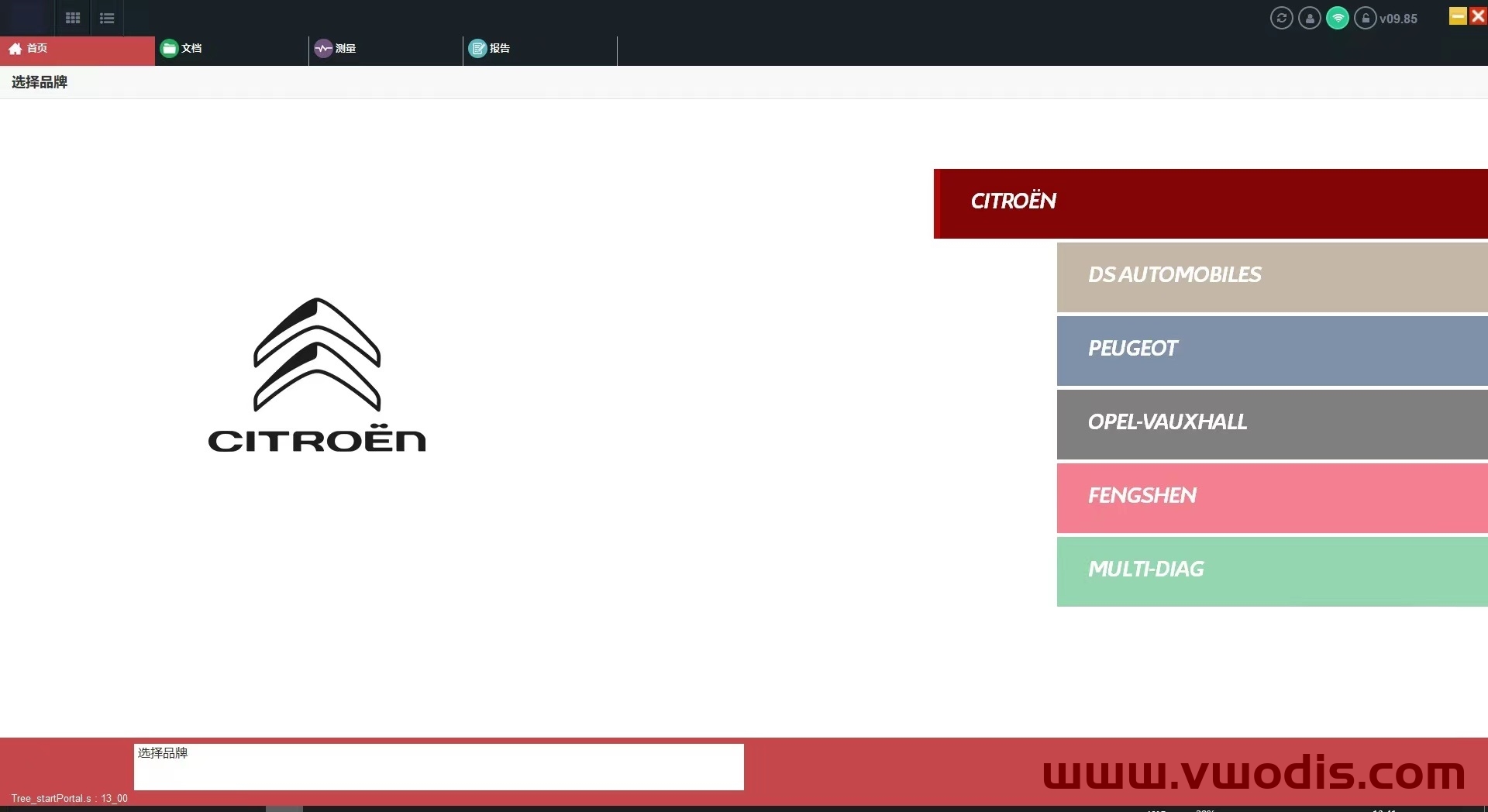
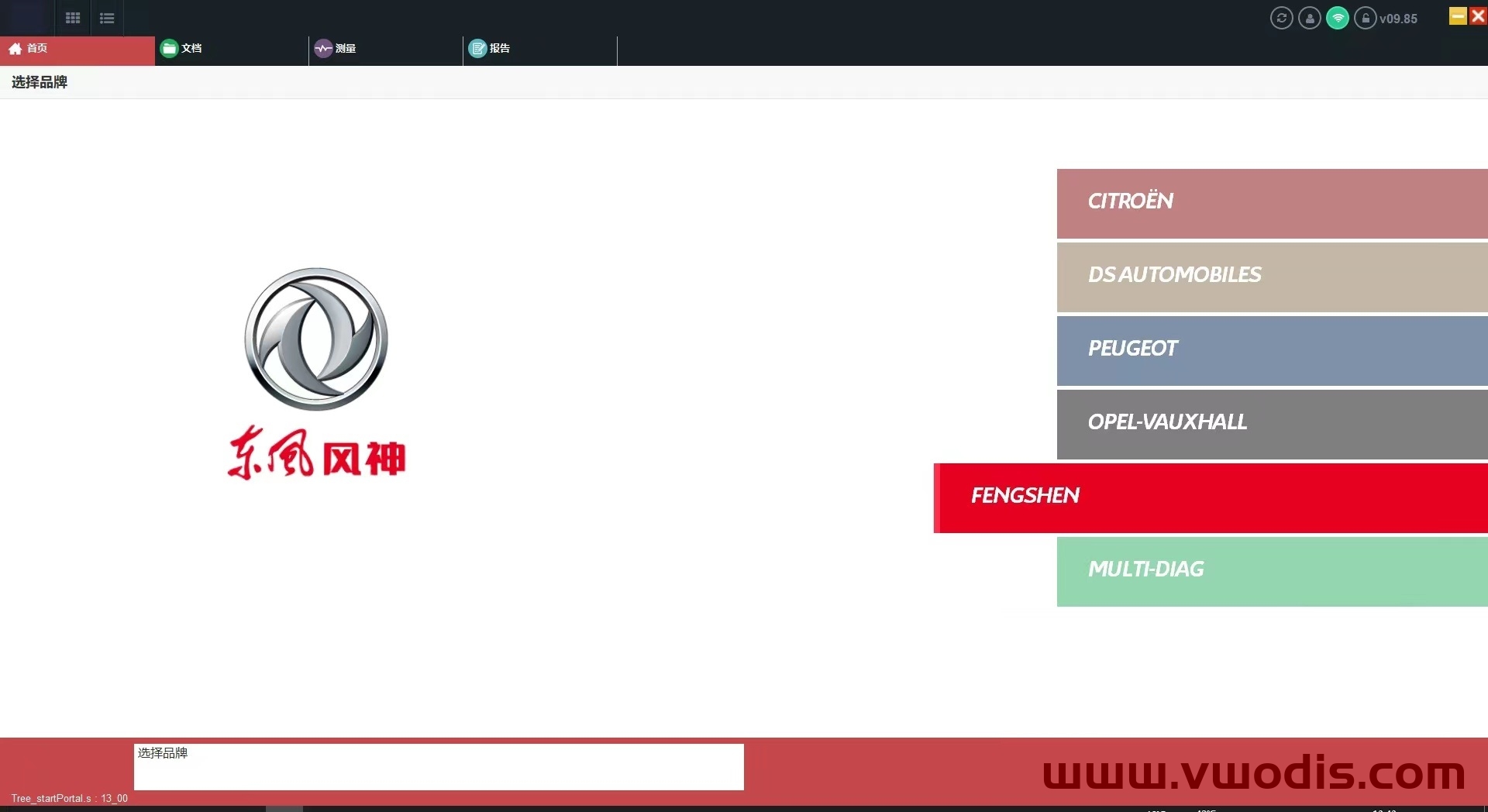
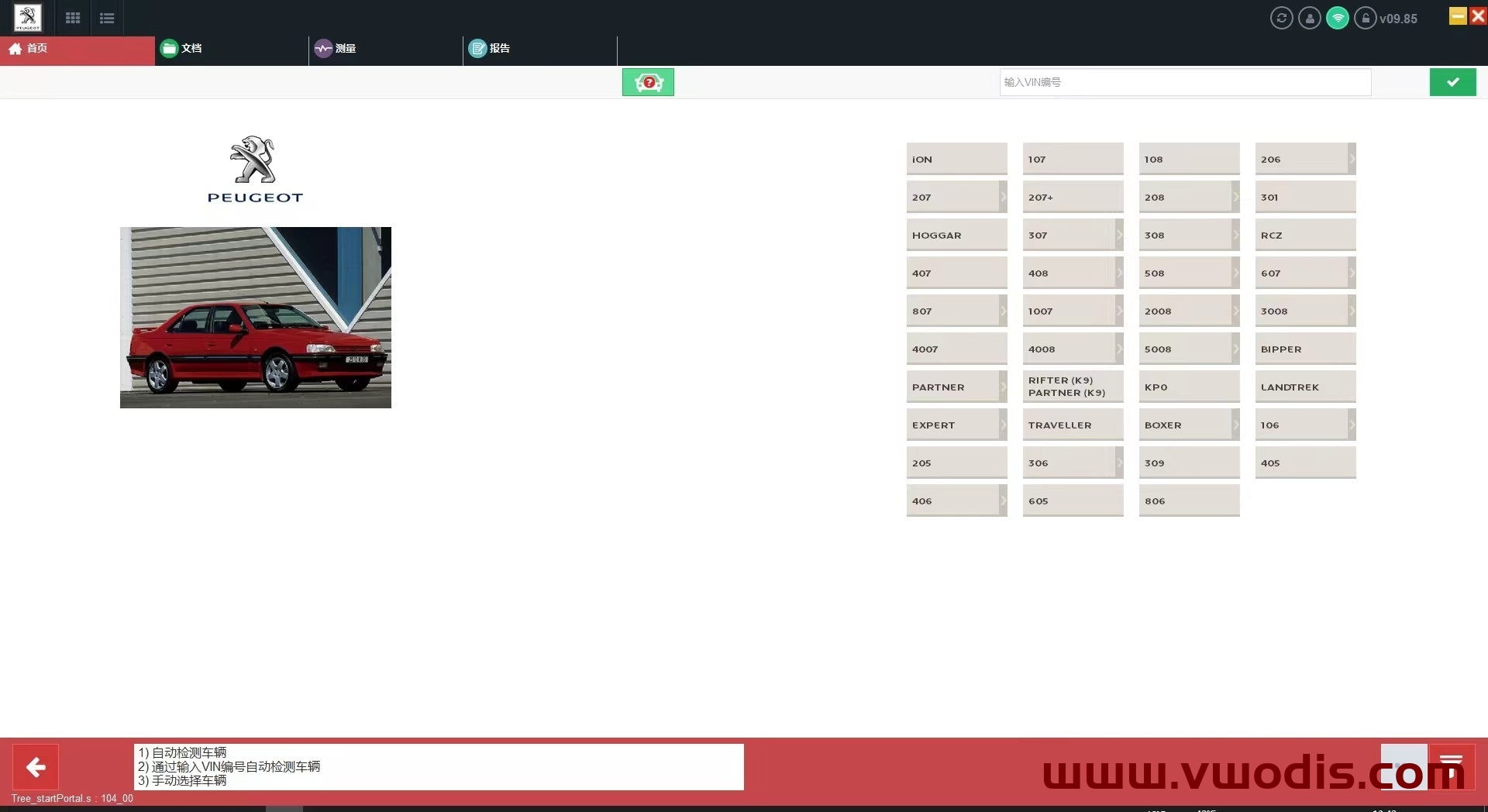
标致、雪铁龙、DS 东风等五品牌诊断原厂专检软件
注意️都是实体机版本、不是VM虚拟机。
win7、win10、不分32位和64位随便安装、不分电脑、连不连网、都随便使用。
安装时请勿打开杀毒软件。
Check the drive letters have been assigned correctly after the restore. You should have:
C:\SYSTEM
D:\APPS
E:\DATA
Sometimes D: and E: get swapped. Go to Windows Computer Management (right-click on This PC and choose Manage), then go to Disk Management, and re-assign the drive letters.
On the Windows desktop you will see a shortcut to “StopUpdates10”. This stops Windows from updating until you want it to. To switch updates back on, open the program and click the button “Restore Windows Updates”.
Easy way to Imprint PIWIS3
1. Run services.msc, and make sure AdminService is Disabled.
2. Copy the PIWIS Key Generator to the Windows Desktop and open it.
3. Run a command prompt (Start Menu > Command Prompt).
4. Type “wmic bios get serialnumber” (without quotes) and press Enter
5. Enter the Serial Number in the Keygen. Close Command Prompt.
6. Enter Dealer ID in Keygen (UK=921000, DE=0010000, USA=4500000, IT=7840000, FR=9200000, etc).
7. Enter Country in Keygen.
8. Enter an expiry date 10 years in advance (example: if date is 03 August 2021, change it to 03 August 2031).
9. Open PIWIS and go to Imprint and certificates.
10. Note the Request Key, and enter it into the Challenge box of the Keygen.
11. Generate licence with Keygen.
12. Enter the generated licence in the Licence key boxes in PIWIS.
13. Tick the “I accept the conditions” box and click Licence update.
14. If you have entered everything correctly, you will get a message asking you to reboot. DO NOT REBOOT – click
Cancel.
15. Click the Start button and choose Kill PIWIS. (Or close using Task Manager).
16. Run Regedit.exe and go to HKEY_LOCAL_MACHINE\SOFTWARE\PIWIS\Licence.
17. Check that the Challenge Key is the same as PIWIS/Keygen.
18. Delete the Licence Key registry entry and replace it with the Keygen Licence.
19. Exit Regedit, and REBOOT the computer.
I extracted the update 41.300 for you guys and modified the .xml file so it does not install the McAfee update.
Copy the files on a SD card and run setup…
it is not encryted
I have had trouble with the 41.100 and 41.300 updates. If I update PT3G_Basis_System and the PIDT modules, I have a PPN Client pop-up which keeps nagging me to log in, and GFF and WD won’t work offline.
I have done lots of work on the shell.config file, and can now get GFF and WD working again, but I can’t get rid of the PPN pop-up.
The simple solution for now is to remove the PT3G_Basis_System and PIDT lines from install.xml, but in the long term “we” will need a better way.
I have attached modified inis and install.xml for anyone who has similar problems.