分类: Ford

This category gathers Ford automotive resources including diagnostic tools, ECU data, software packages, wiring diagrams, service manuals, programming tutorials, repair cases and retrofit references.

  • 【Software】Ford IDS 132.04 2025 Patched for ANY VCI

    【Software】Ford IDS 132.04 2025 Patched for ANY VCI

    Ford IDS 132.04 2025 Patched for ANY VCI

    Ford IDS 132.04 2025 Patched for ANY VCI

    Ford IDS 132.04 2025 Patched for ANY VCI

    ————————————————————————————————–

    For testing the patched IDS, I used the following diagnostic interfaces:

    – Autroniq A100 & A200

    – Ford VCM III

    ————————————————————————————————–

    ⚠️ Important Notes About Interfaces

    Software works 100% with quality and genuine interfaces.

    Please do not waste my time asking me to set up your interface with the software.

    If your interface is not working with IDS, contact the seller of the interface.

    The issue will always be with the your installation setup or your interface driver, not IDS.

    ❌ Poor quality interfaces: VNCI, VXDIAG

    If you use rubbish interfaces, please do not waste my time.

    ————————————————————————————————–

    🔧 Installation Step-by-step:

    1 Install IDS-132_01_Full.exe

    Important: Make sure you install it using the default path:

    C:Program Files (x86)Ford Motor CompanyIDS

    2. Install FDRS_45.6.5_exe

    3. Install VCI_Software_1.0.1.18

    4. Download and Install Ford Driver for your VCI!

    5. Restart your computer once the installations are complete.

    6. Run the patcher as Administrator (Important!). If you don’t, it won’t work.

    7. When prompted, type 1 to patch and press Enter. You should see a confirmation message saying the patch was successful.

    8. Start the patcher again, and this time press number 2. This will popup the VCI Manager that will allow you to choose your VCI Type.

    9. Once you chose the VCI, IDS will start.

    10. You can now start IDS normally every time without need of patcher or VCI Manager.

    Now you’re ready, enjoy!

    💡 Notes

    This Patch and IDS was tested on Windows 11 (fresh install, 64-bit).

    You must also have FDRS and VCI Manager Installed together with IDS for it to work.

    ————————————————————————————————–

    Troubleshooting

    1. IDS Still Launches Login Page Issue:

    This issue occurs when there is a permissions problem on your Windows system that prevents the patcher from changing the IDS Launcher target.

    To fix this, please follow the steps below:

    1. Right-click on your IDS shortcut.

    2. Go to Properties.

    3. In the Target field, change SubscriptionLauncher.exe to Tabman.exe.

    4. Try running IDS again.

    Please refer to the images inside the ZIP file for a visual tutorial on how to do this.

    2. IDS Does not show VCI Manager icon in the program

    To fix this issue follow the steps below;

    1. Open IDS Patcher as administrator

    2. Press number 2 and Enter.

    3. Choose your VCI from the list and press OK

    That’s it!

    ————————————————————————————————–

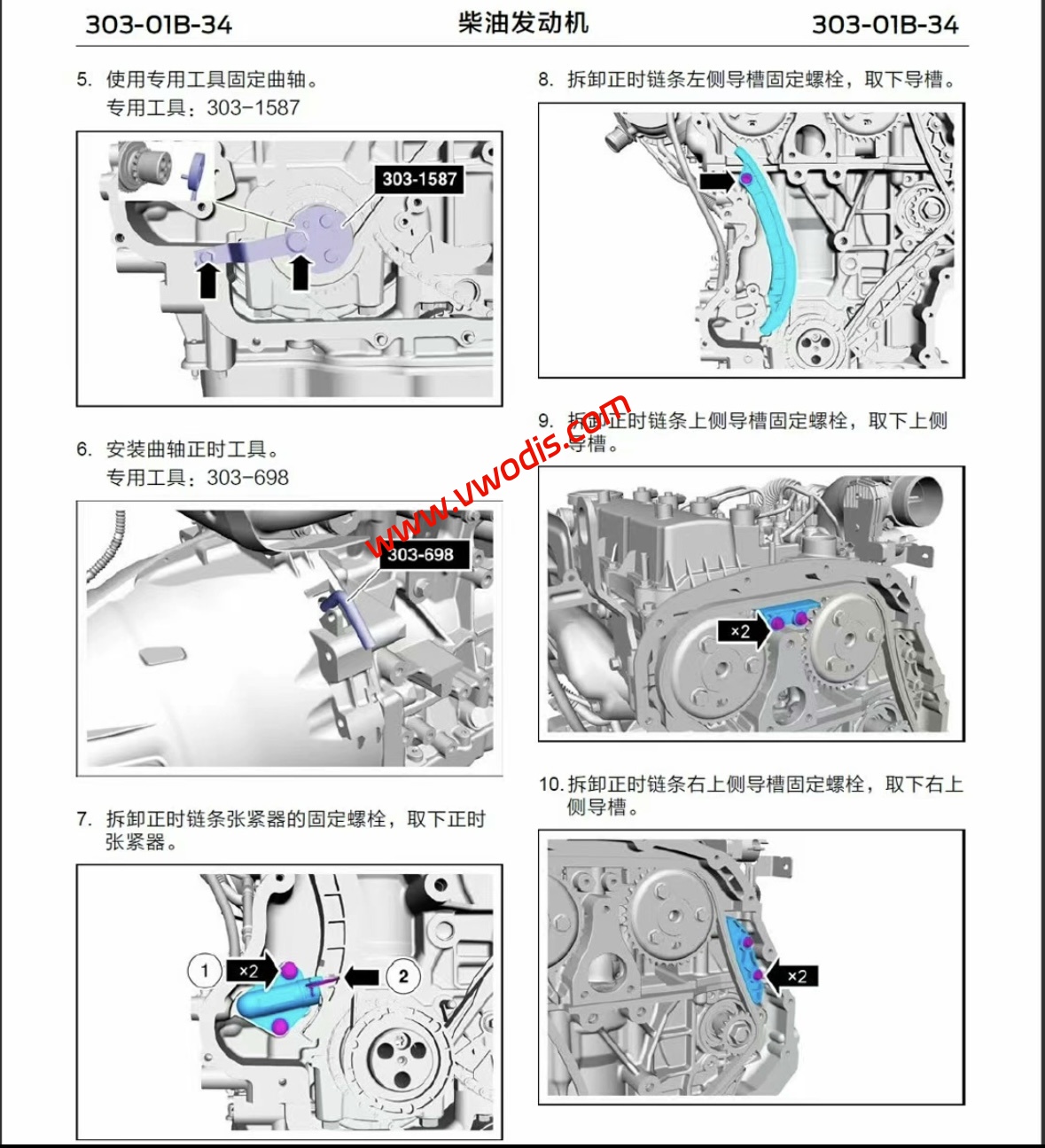
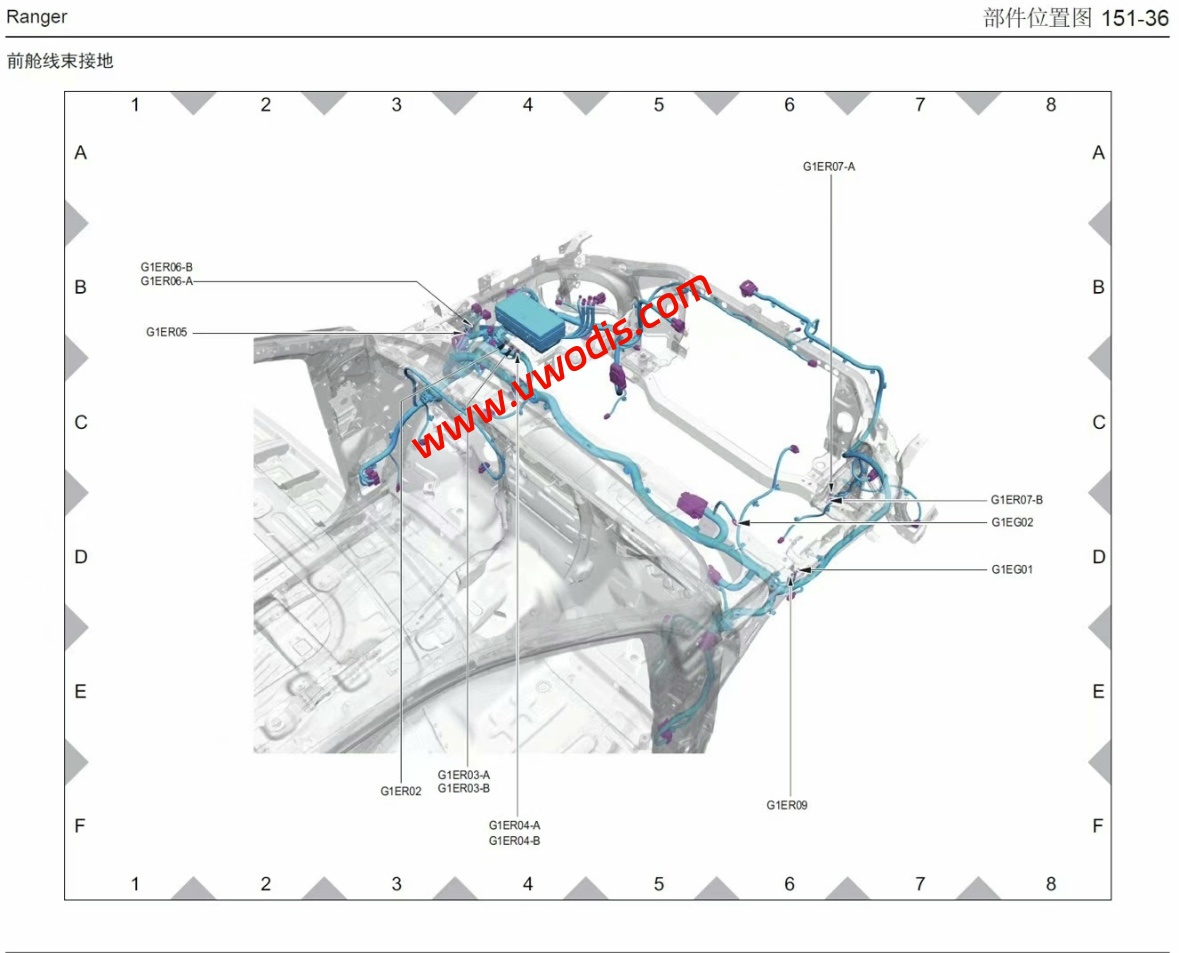
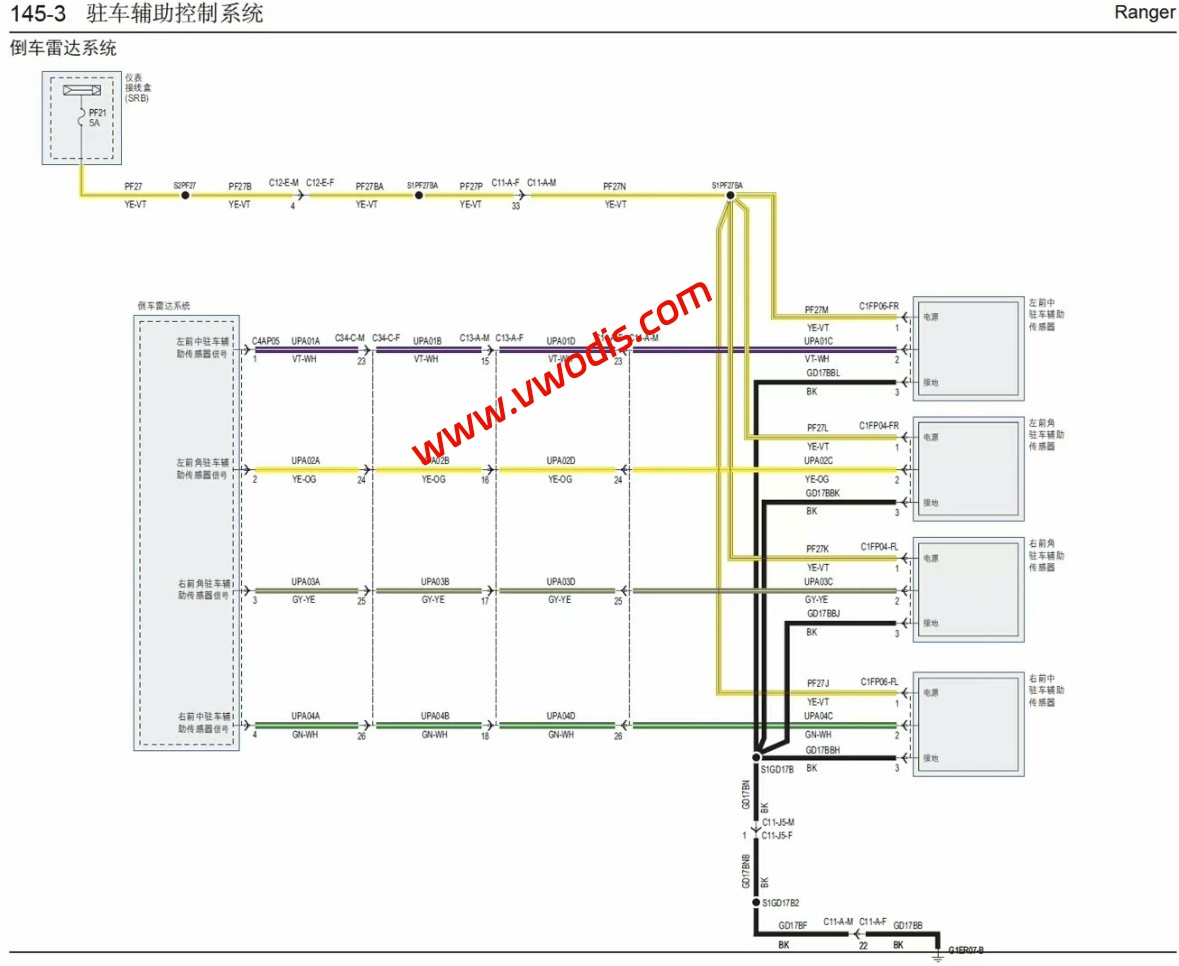
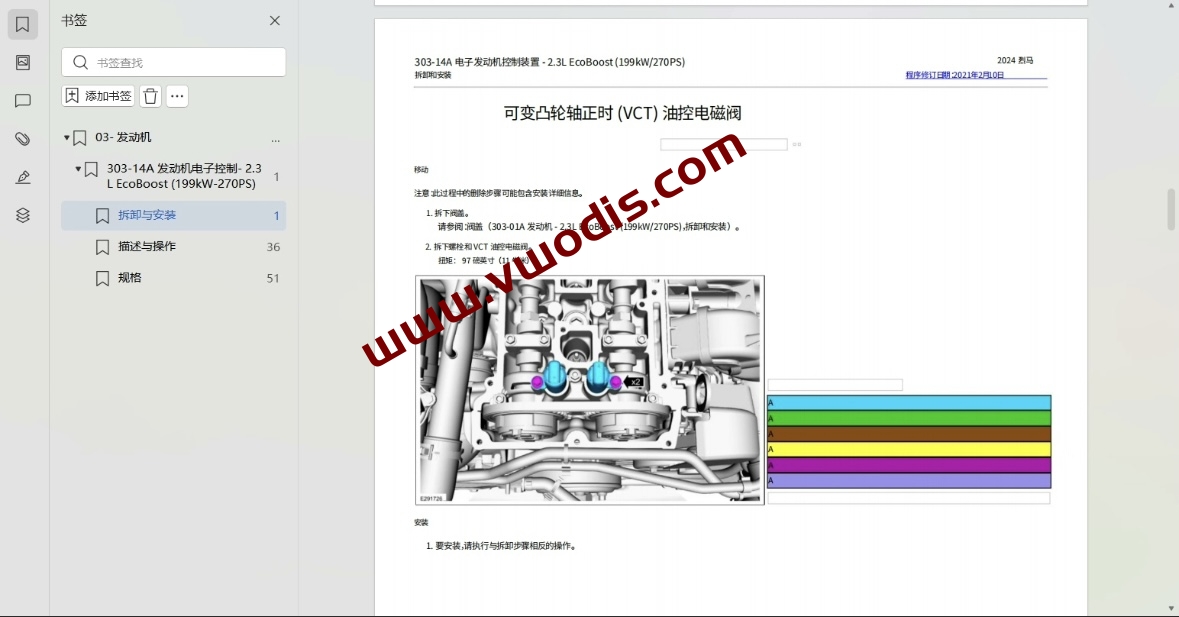
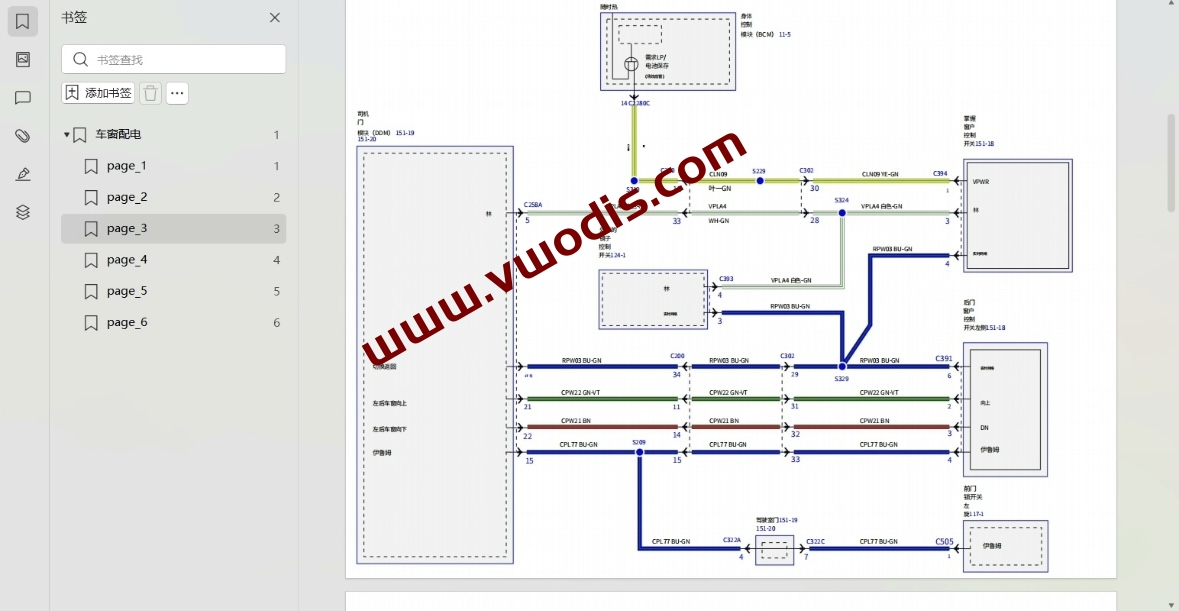
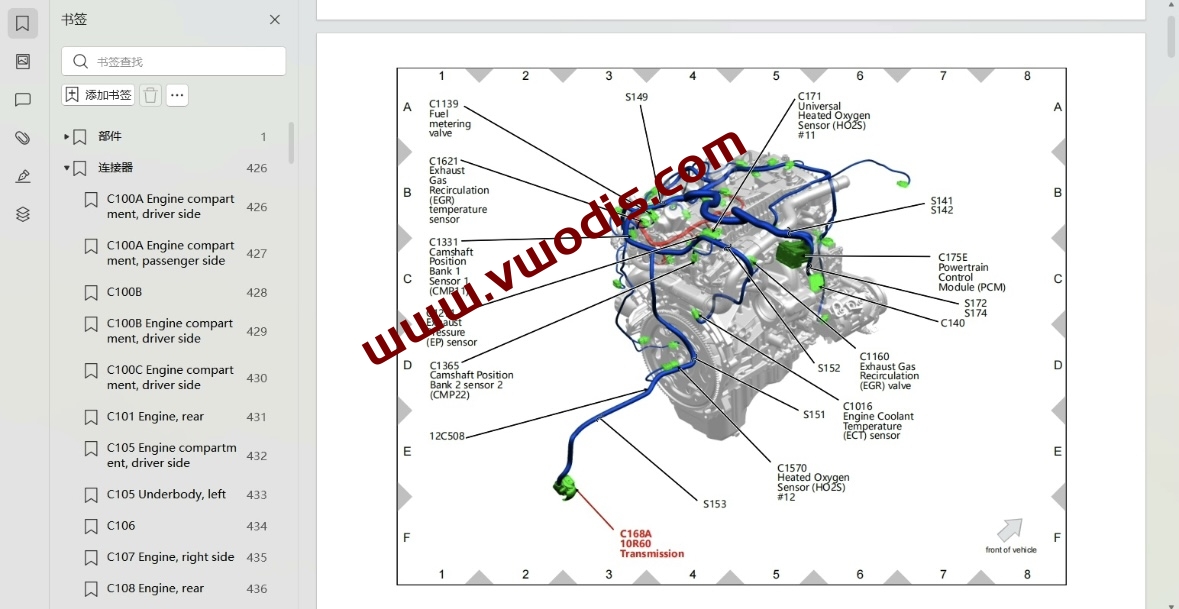
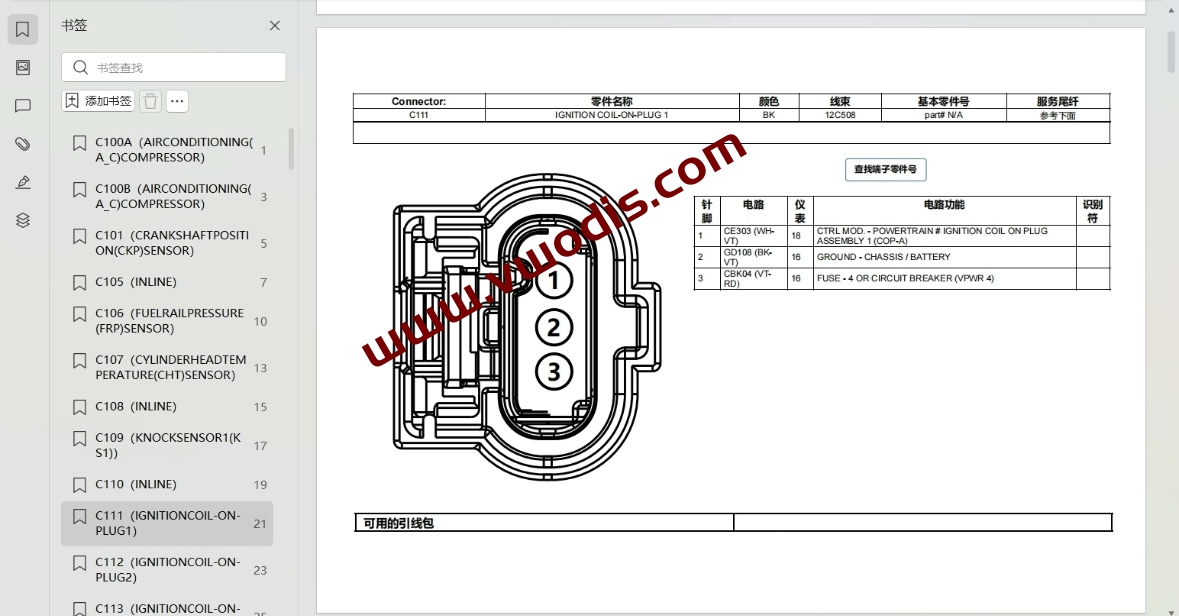
  • 【Repair】Ford【vwodis】Ford Ranger 2023-2024 Repair Manual + Circuit Diagram

    Ford【vwodis】Ford Ranger 2023-2024 Repair Manual + Circuit Diagram

    Ford【vwodis】Ford Ranger 2023-2024 Repair Manual + Circuit Diagram

    Ford【vwodis】Ford Ranger 2023-2024 Repair Manual + Circuit Diagram

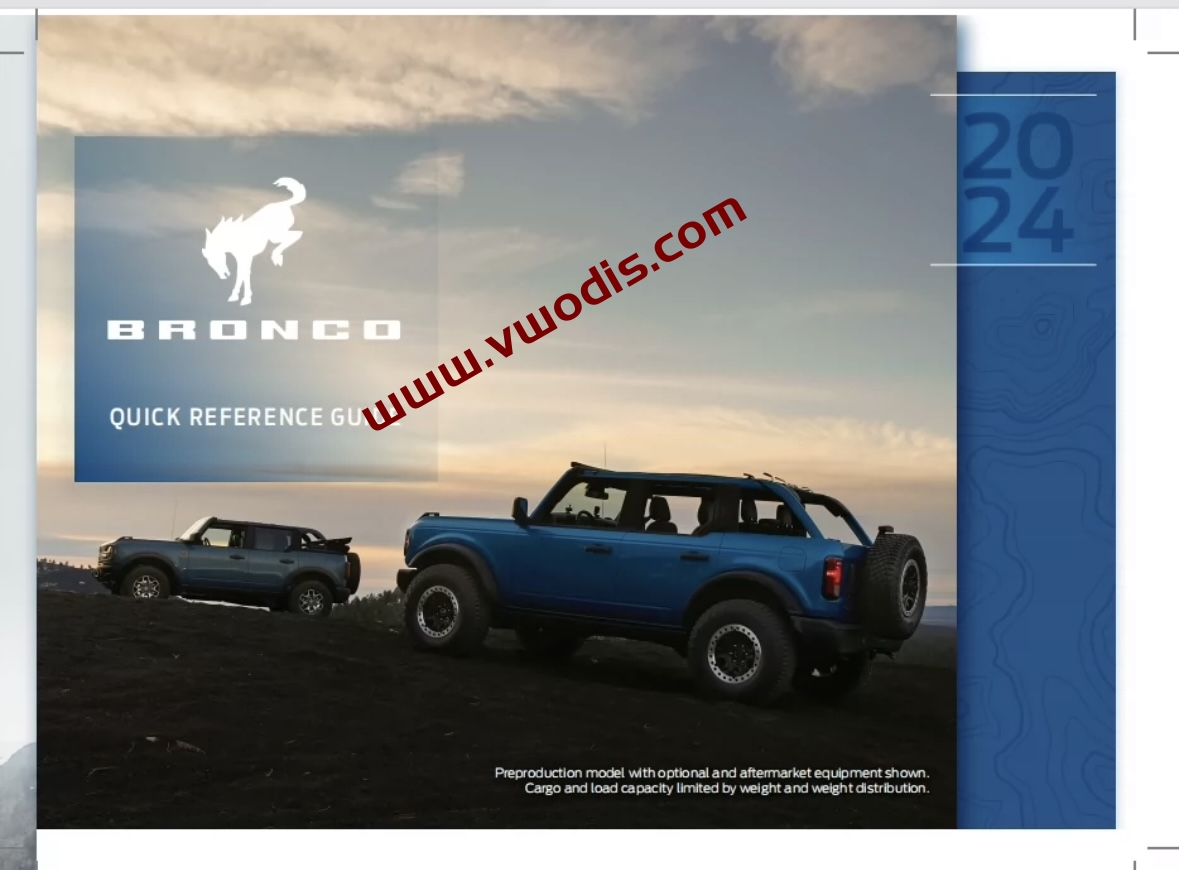
  • 【Repair Manual + Circuit Diagram】Ford【vwodis】Ford Bronco Import Domestic 2022-2024 Repair Manual + Circuit Diagram

    【Repair Manual + Circuit Diagram】Ford【vwodis】Ford Bronco Import Domestic 2022-2024 Repair Manual + Circuit Diagram

    Ford【vwodis】Ford Bronco Import Domestic 2022-2024 Repair Manual + Circuit Diagram

    Ford【vwodis】Ford Bronco Import Domestic 2022-2024 Repair Manual + Circuit Diagram

    Ford【vwodis】Ford Bronco Import Domestic 2022-2024 Repair Manual + Circuit Diagram

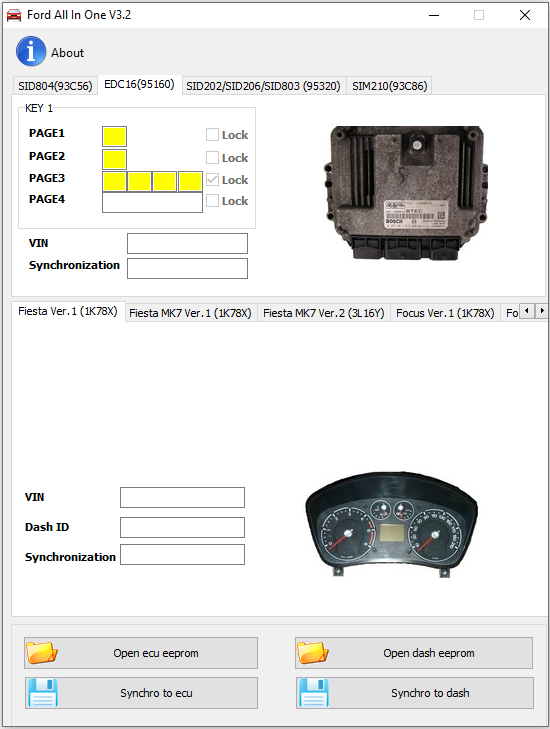
  • 【Software】Ford【vwodis】Ford All In One v3.2

    Ford【vwodis】Ford All In One v3.2

    Ford【vwodis】Ford All In One v3.2

    Ford【vwodis】Ford All In One v3.2

    Supported cars:

    Ford Transit Connect 2005-2010, Ford Fiesta 2006-2009, Ford Fusion 2006-2009, Ford Mondeo 2008+, Ford Galaxy 2008+, Ford S-max 2008+

    Supported ECU:

    SID804, EDC16, SID206, SID202, SID803, SIM210

    How immobilizer works on Ford Transit Connect 2005-2010, Ford Fiesta 2006-2009, Ford Fusion 2006-2009:

    Immobilizer data (PATS) on these cars are stored in the instrument cluster(IC) HC12 processor.
    Instrument cluster receive transponder key signal from immobilizer coil and if key data is equal to car, IC send synchronization signal to motor ECU.
    If transponder key is stored in IC and synchronization data IC-ECU is correct, ECU permit to start the engine.

    If car transponder key is lost:

    Read with CarProg instrument cluster EEPROM by OBDII (or you can remove IC from car and read HC12 processor EEPROM with any programmer (like CarProg, XPROG OR UPA), save file and open it with “Open IC dump”. Program will show you transponder data. Write this data to EH2 or TPX2 transponder with any transponder programmer (like RW4, Codereader or Zedbull).

    If immobilizer lamp is ON, motor ECU is defective/lost:

    Read with CarProg instrument cluster EEPROM by OBDII (or you can remove IC from car and read HC12 processor EEPROM with any programmer (like CarProg, XPROG OR UPA), save file and open it with “Open IC dump”. Open ECU(SID804,EDC16,SID206,SIM210) and read EEPROM (with CarProg you can read in-circuit). Open file with “Open ECU EEPROM” button. Now press button Synchro to ecu (if you want to transfer data from dashboard to ecu) or Synchro to Dash (if you want to transfer data from ecu to dash) and write saved file to dash (if you done synchro to dash) or ecu (if you done synchro to ecu).

    How does immobilizer work on Ford Mondeo 2008+, Galaxy 2008+, S-max 2008+:

    Immobilizer data (PATS) on these cars are stored in the Intelligent power distribution module (GEM) located in passenger compartment fuse box. GEM receive transponder key signal from immobilizer coil and if the key data is equal to car, GEM sends synchronization signal to motor ECU. If transponder key is stored in GEM and synchronization data GEM-ECU is correct, GEM permits to start the engine.

    If car transponder key is lost:

    1. Remove GEM (Intelligent power distribution module) from car.
    2. Open and locate 25320 EEPROM. Read (with CarProg you can read in-circuit).
    3. Save file and open with “Open GEM EEPROM”. Program will show you transponder data.
    4. Write this data to EH2 or TPX2 transponder with any transponder programmer (like RW4, Codereader or Zedbull)

    If motor ECU is defective/lost:

    1. Remove GEM (Intelligent power distribution module) from the car.
    2. Open and locate 25320 EEPROM. Read (with CarProg you can read in-circuit).
    3. Save file and open with “Open GEM EEPROM”.
    4. Open ECU and read EEPROM.
    5. Open file with “Open ECU EEPROM” button.
    6. Now transfer synchronization data from GEM to motor ECU using button Synchro to ecu.
    7. Save ECU file and write it back to Engine Control Module

  • 【软件】Ford Mazda IDS v124.01 + Patch

    Ford Mazda IDS v124.01 + Patch

    Ford Mazda IDS v124.01 + Patch

    Ford Mazda IDS v124.01 + Patch

  • Ford Mazda Incode Outcode Offline Calculator

    Ford Mazda Incode Outcode Offline Calculator

    Ford Mazda Incode Outcode Offline Calculator

    Ford Mazda Incode Outcode Offline Calculator

  • Ford Outcode Incode Calculator Collection

    Ford Outcode Incode Calculator Collection

    Ford Outcode Incode Calculator Collection

    Ford Outcode Incode Calculator Collection

  • FORD IDS 121 FULL + VX DRIVERS + PATCH

    FORD IDS 121 FULL + VX DRIVERS + PATCH

    FORD IDS 121 FULL + VX DRIVERS + PATCH

    FORD IDS 121 FULL + VX DRIVERS + PATCH

  • FORD ETIS 2015 TIS WORKSHOP MANUALS

    FORD ETIS 2015 TIS WORKSHOP MANUALS

    FORD ETIS 2015
    In a single application workshop manuals, for FORD cars till 2015.

    Ford Etis 02/2015 includes an extensive knowledge base on repair, maintenance and diagnostics of cars of concern Ford. In the program you will find the following information: technical characteristics and specifications, manuals, repair mechanical parts of vehicles, diagnostic procedures and troubleshooting, description of functions, instructions for repair of the car body, to restore the paint and corrosion protection and geometric data of the body, and more. You will find information on the standardization of working hours for each technical procedure, which contains data for mechanical, painting and servicing, including repair of car bodies. For each type of repair and restoration work describes the special tools. Electronic knowledge base Ford Etis 02/2015 includes information on pre-sales of cars and their planned service. You’ll also find information on the computer diagnostics of electronic systems and control units of vehicles. Release 02/2015.
    Supplied with clear installation instruction in english language! Post sale tech assistance guaranteed!
    Now runs on 64bit systems also!!!
    Models Covered :

    AUTO/Cars:
    B-Max – C-MAX – Cougar – Escort/Orion – Explorer – Fiesta – Focus – Focus RS – Fusion –  Galaxy – Ikon –  Ka – Kuga – Maverick – Mondeo – Puma – Racing Puma
    Ranger – S-MAX/Galaxy – Scorpio – Streetka – Transit – Transit/Tourneo Connect – Windstar

    Requirements: Compatibile con Windows XP, Windows 7, Windows 8 (sistemi a 32bit e 64bit!!!!)

    Lingue disponibili/Languages: ITALIANO, english, french, german, spanish, portoguese, magyar, nederlands, polski, norsk, roman, suomi, greek, russian

  • 福特野马仪表汉化教程-视频

    福特野马仪表汉化教程-视频

    福特野马仪表汉化教程-视频

    福特野马仪表汉化教程-视频